Restore item content
|
|
 This is a
Project managers can restore item content from a previous revision. This process creates a new revision that includes the following previous item content and delivery settings:
- Content components
- Text
- Media assets
- Image assets in content components
- Passage components
- Options
- Key
- Delivery settings (Title, Enumerated, Calculator, Shuffle Response, Response Required, etc.)
Additional data can be optionally restored:
- Blueprint
- Metadata
- Statistics
Restore item content
|
|
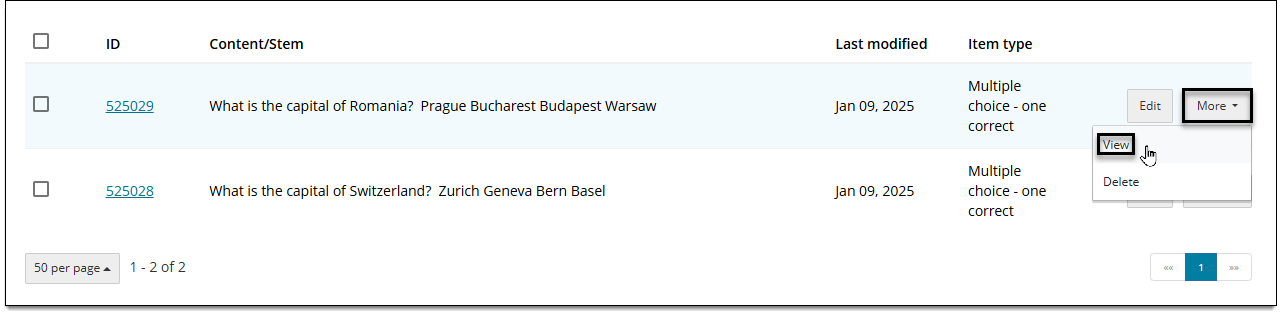
- On the Assignments page, find the desired item and click More > View.
- In the item settings panel
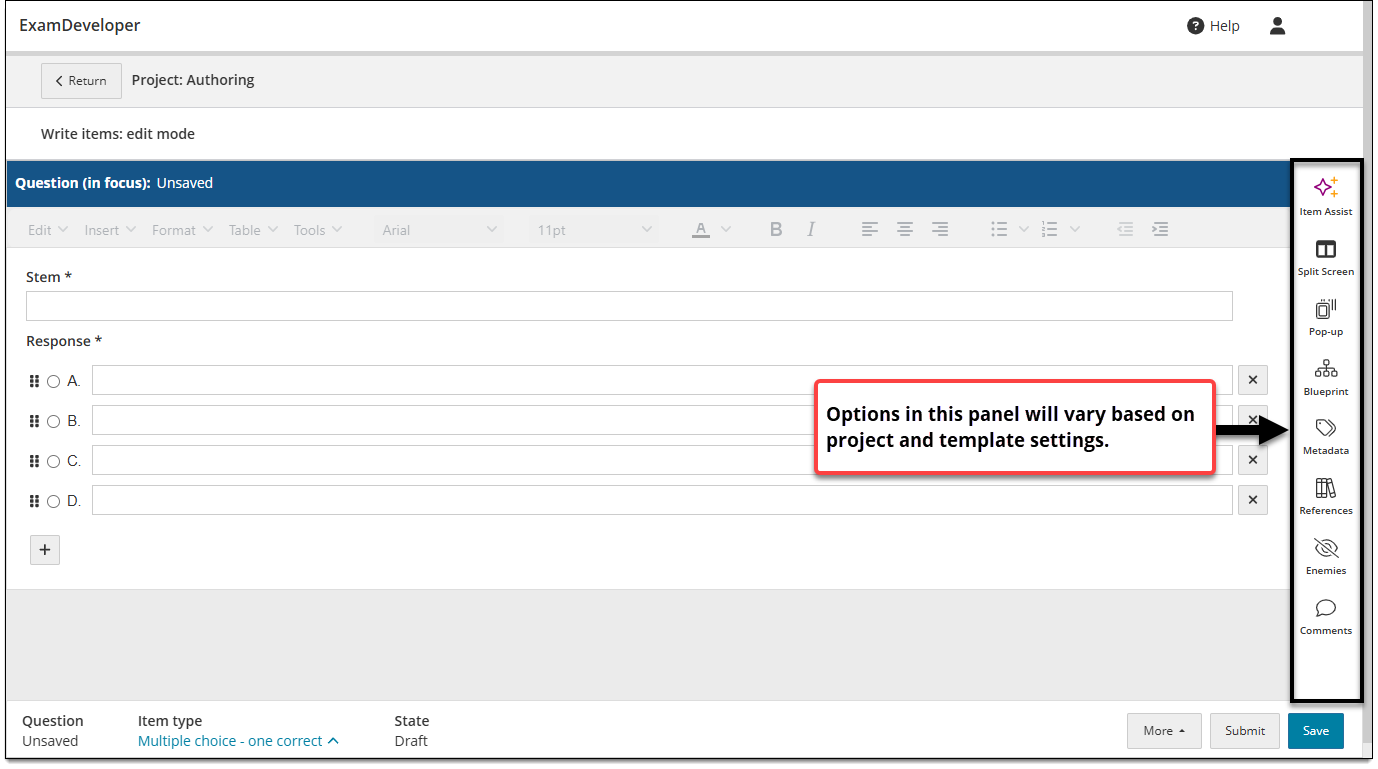
 , click History.
 - Select the check box for the revision you want to restore and click View. The previous version of the item is displayed.
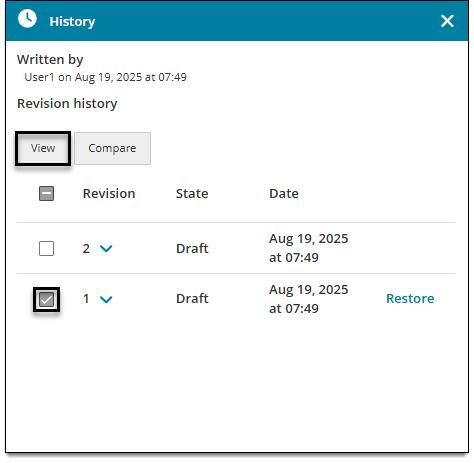
- Review the item content to make sure you want to restore it.
- To return to the current revision or view a different revision, click Exit history in the lower-right corner.
- In the History panel, click Restore (located to the right of the revision's date).
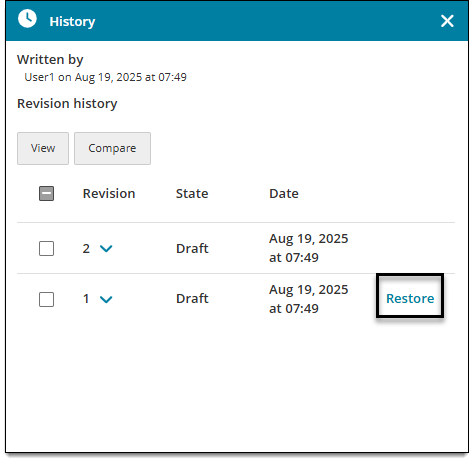
- In the pop-up window, review additional attributes to restore to the new revision.
 If you deselect any of these options, their current state will be maintained instead of restoring their state from the chosen revision. For example, if an item is currently on Revision 2 and you want to restore Revision 1 while keeping the metadata from Revision 2, you would deselect the Metadata checkbox.
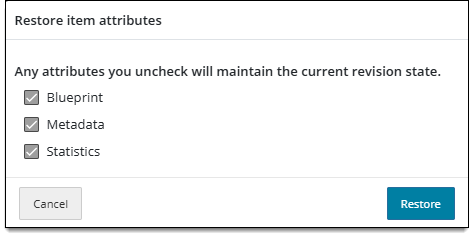
- Blueprint: the blueprint selection applied to the revision (if any)
- Metadata: any metadata applied to the revision
- Statistics: any statistics imported for the item
- References, comments, assets, and exhibits cannot be restored from a previous revision but their current state (if any) will be maintained. For example, if an item is currently on Revision 2 and you want to restore Revision 1, only references/comments/assets/exhibits from the current revision (Revision 2) will be maintained.
- Click Restore.
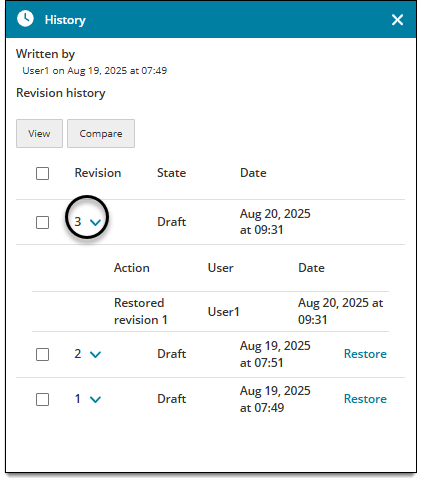
- The item content is restored and the new revision is displayed. In the History panel, you'll see the new revision number which can be expanded to show the revision that was restored.